What you can import
Depending on the app, you can import:
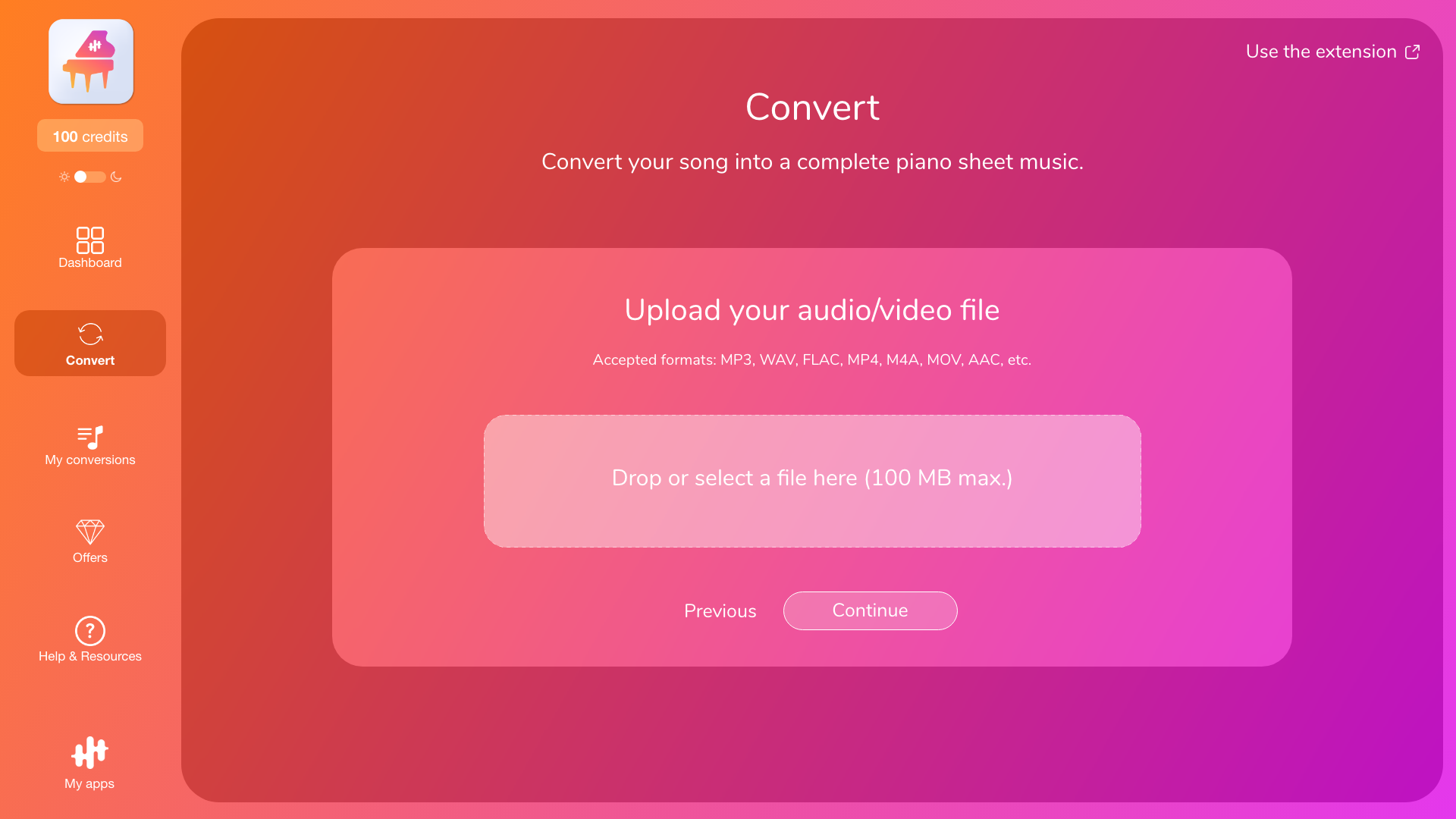
- an audio file (e.g., MP3, M4A, WAV, etc.),
- a video file (e.g., MP4, MOV, etc.),
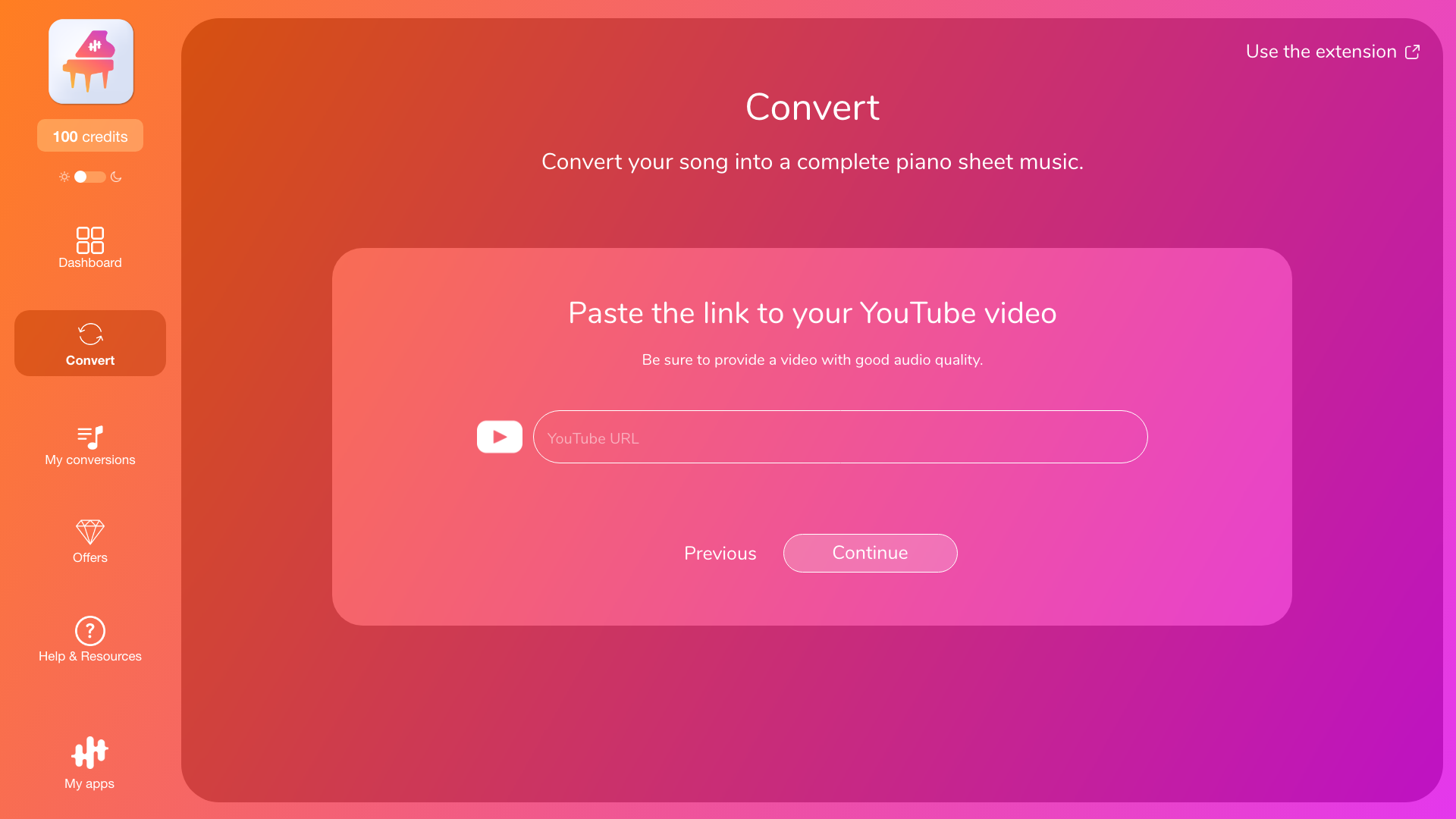
- or a YouTube link.
In all cases, the goal is the same: to provide a source with good audio quality that the app can analyze and convert.
Limits to be observed (very important)
To help prevent import failures and overly long wait times, please keep the following guidelines in mind:
-
Maximum size (files): 100 MB and 15 minutes max per audio/video file.
-
Maximum duration (YouTube links): 15 minutes per YouTube video.
-
On YouTube, some links may be rejected depending on the video (restrictions, format, duration, availability).
If your import fails, the cause is most often a size limit, an unsupported format, or an unusable YouTube link.
If your file is too large: what to do
If your file exceeds the 100 MB limit, here are the most effective solutions:
1) Use a lighter version
In many cases, an MP3 or M4A file is much easier to import than a very large WAV/FLAC file.
2) Shorten your file
If you need a specific passage, cut the music to keep only the useful part (for example, 1 to 3 minutes to test, or a representative passage).
You can then convert the entire track using your conversion credits if you are satisfied with the result.
3) Try another source
If you are importing a “problematic” file (corrupted audio, atypical encoding), use another version of the same track or another YouTube video.
If a YouTube link does not work
Even if it is the same content, some links may cause problems. In this case:
- try copying the link from the “Share” button on YouTube,
- or copy the URL directly from the address bar,
- and check that the video is accessible in your country and not restricted.
Common problems and quick solutions
Loading freezes or does not start
First try reloading the page, then try importing again. Some failures are temporary (network or one-off incident).
Immediate error during import
This is often related to the format or size. Try another file or a lighter version.
Import OK, but conversion impossible
In this case, the problem is not with the import, but with the mode selection (Transcription/Arrangement) or the instruments detected.
See: “Why the app sometimes recommends arrangement (or prevents you from transcribing)”.
VPN, network, and blockages
In some cases, a VPN or a heavily filtered network (company, school, public Wi-Fi) may prevent import or block conversion. If you are using a VPN, temporarily disable it and try again.
To go further
- To understand the steps: “How it works (import → analysis → selection → conversion → download)”
- To cut a passage: “Transcribe only a passage (beginning/end) and avoid intros/silences”
- To find your files: “Download your files (PDF, MIDI, MusicXML) and find your conversions”
